---
products: all
---
# Manage notifications
This page provides guidance on how to manage notifications for Airbyte, allowing you to stay up-to-date on the activities in your workspace.
## Notification Event Types
| Type of Notification | Description |
| ------------------------------------------------- | ------------------------------------------------------------------------------------------------------------------------------------------------------------------------- |
| **Failed Syncs** | A sync from any of your connections fails. Note that if sync runs frequently or if there are many syncs in the workspace these types of events can be noisy |
| **Successful Syncs** | A sync from any of your connections succeeds. Note that if sync runs frequently or if there are many syncs in the workspace these types of events can be noisy |
| **Automated Connection Updates** | A connection is updated automatically (ex. a source schema is automatically updated) |
| **Connection Updates Requiring Action** | A connection update requires you to take action (ex. a breaking schema change is detected) |
| **Warning - Repeated Failures** | A connection will be disabled soon due to repeated failures. It has failed 50 times consecutively or there were only failed jobs in the past 7 days |
| **Sync Disabled - Repeated Failures** | A connection was automatically disabled due to repeated failures. It will be disabled when it has failed 100 times consecutively or has been failing for 14 days in a row |
| **Warning - Upgrade Required** (Cloud only) | A new connector version is available and requires manual upgrade |
| **Sync Disabled - Upgrade Required** (Cloud only) | One or more connections were automatically disabled due to a connector upgrade deadline passing |
### Enabling schema update notifications
To be notified of any source schema changes, make sure you have enabled `Automatic Connection Updates` and `Connection Updates Requiring Action` notifications. If these are off, even if you turned on schema update notifications in a connection's settings, Airbyte will _NOT_ send out any notifications related to these types of events.
To edit this setting, click **Connections** and select the connection you want to receive notifications for. Click the **Settings** tab on the Connection page. In the **Advanced Settings**, toggle **Schema update notifications**.
## Configure Email Notification Settings
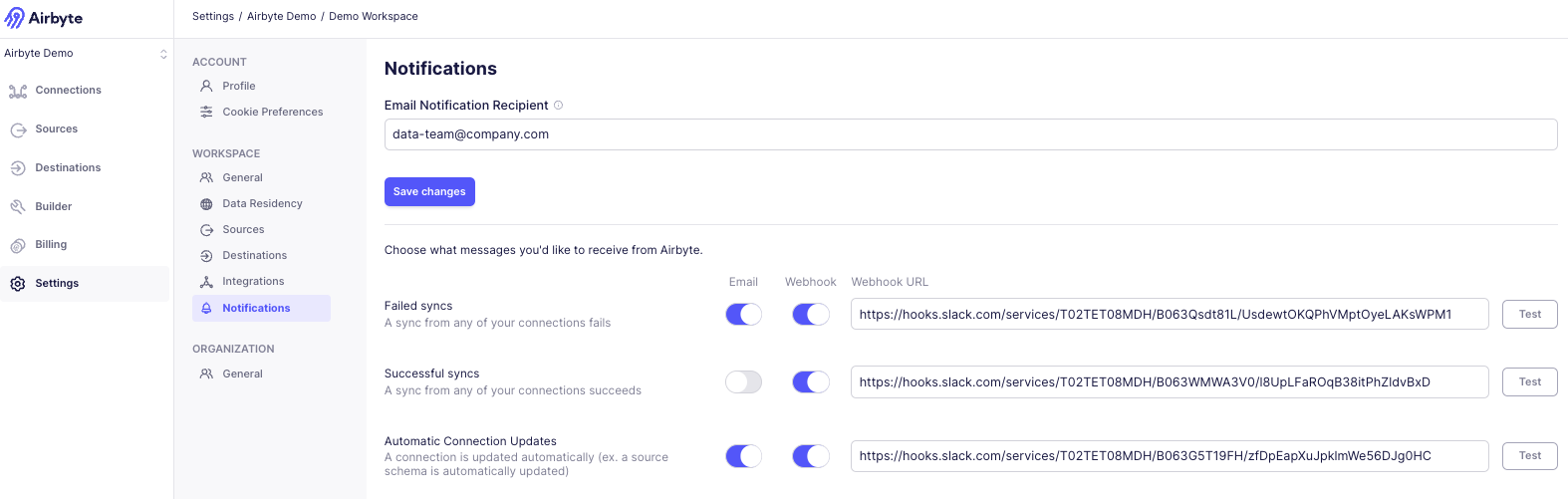
To set up email notifications, click **Settings** and navigate to **Workspace** > **Notifications**.
Toggle which messages you'd like to receive from Airbyte. All email notifications will be sent by default to the creator of the workspace.
:::note
All email notifications except for Successful Syncs are enabled by default.
:::
### Modify the email recipient
To change the recipient, edit and save the **notification email recipient**. If you would like to send email notifications to more than one recipient, you can enter an email distribution list (ie Google Group) as the recipient.
## Configure Webhook Notification Settings
Airbyte can send notifications to any generic webhook service. This is helpful when using a downstream service to trigger transformations or other tasks in your data stack.
### Example Webhook Notification Payload
Open each section to see an example of the payload returned for the notification type.
:::info
Airbyte passes both the `data` payload along with text blocks that are intended for Slack usage.
:::
Failed Sync
```
{
"data": {
"workspace": {
"id":"b510e39b-e9e2-4833-9a3a-963e51d35fb4",
"name":"Workspace1",
"url":"https://link/to/ws"
},
"connection":{
"id":"64d901a1-2520-4d91-93c8-9df438668ff0",
"name":"Connection",
"url":"https://link/to/connection"
},
"source":{
"id":"c0655b08-1511-4e72-b7da-24c5d54de532",
"name":"Source",
"url":"https://link/to/source"
},
"destination":{
"id":"5621c38f-8048-4abb-85ca-b34ff8d9a298",
"name":"Destination",
"url":"https://link/to/destination"
},
"jobId":9988,
"startedAt":"2024-01-01T00:00:00Z",
"finishedAt":"2024-01-01T01:00:00Z",
"bytesEmitted":1000,
"bytesCommitted":90,
"recordsEmitted":89,
"recordsCommitted":45,
"errorMessage":"Something failed",
"bytesEmittedFormatted": "1000 B",
"bytesCommittedFormatted":"90 B",
"success":false,
"durationInSeconds":3600,
"durationFormatted":"1 hours 0 min"
}
}
```
Successful Sync
```
{
"data": {
"workspace": {
"id":"b510e39b-e9e2-4833-9a3a-963e51d35fb4",
"name":"Workspace1",
"url":"https://link/to/ws"
},
"connection":{
"id":"64d901a1-2520-4d91-93c8-9df438668ff0",
"name":"Connection",
"url":"https://link/to/connection"
},
"source":{
"id":"c0655b08-1511-4e72-b7da-24c5d54de532",
"name":"Source",
"url":"https://link/to/source"
},
"destination":{
"id":"5621c38f-8048-4abb-85ca-b34ff8d9a298",
"name":"Destination",
"url":"https://link/to/destination"
},
"jobId":9988,
"startedAt":"2024-01-01T00:00:00Z",
"finishedAt":"2024-01-01T01:00:00Z",
"bytesEmitted":1000,
"bytesCommitted":1000,
"recordsEmitted":89,
"recordsCommitted":89,
"bytesEmittedFormatted": "1000 B",
"bytesCommittedFormatted":"90 B",
"success":true,
"durationInSeconds":3600,
"durationFormatted":"1 hours 0 min"
}
}
```
Automated Connection Updates
Webhook does not contain payload and only works for Slack notifications
Connection Updates Requiring Action
Webhook does not contain payload and only works for Slack notifications
Warning - Repeated Failures
Webhook does not contain payload and only works for Slack notifications
Sync Disabled - Repeated Failures
Webhook does not contain payload and only works for Slack notifications
Warning - Upgrade Required
Webhook does not contain payload and only works for Slack notifications
Sync Disabled - Upgrade Required
Webhook does not contain payload and only works for Slack notifications
### Configuring Slack Notifications
The webhook notification also integrates easily with Slack.
If you're more of a visual learner, head over to [this video](https://www.youtube.com/watch?v=NjYm8F-KiFc&ab_channel=Airbyte) to learn how to set up a Slack app to receive notifications. You can also refer to the Slack documentation on how to [create an incoming webhook for Slack](https://api.slack.com/messaging/webhooks).
### Create a Slack app
1. To set up Slack notifications, navigate to https://api.slack.com/apps/. Select `Create an App`.

2. Select `From Scratch`. Enter your App Name (e.g. Airbyte Sync Notifications) and pick your desired Slack workspace.
3. **Enable Incoming Webhooks**: in the left sidebar, click on `Incoming Webhooks`. Click the slider button in the top right to turn the feature on. Then click `Add New Webhook to Workspace`.

4. Select the channel that you want to receive Airbyte notifications in (ideally a dedicated one), and click `Allow` to give it permissions to access the channel. You should see the bot show up in the selected channel now. You will see an active webhook right above the `Add New Webhook to Workspace` button.

5. Click `Copy.` to copy the link to your clipboard, which you will need to enter into Airbyte.
Your Webhook URL should look similar to this:
```
https://hooks.slack.com/services/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PM1
```
### Enable the Slack notification in Airbyte
1. Click **Settings** and navigate to **Notifications**. On this page, you can toggle each slider decide whether you want notifications on each notification type. Paste the copied webhook URL to `Webhook URL`.
2. **Test it out**: you can click `Test` to send a test message to the channel. Or, just run a sync now and try it out! For a successful sync, you should receive a notification that looks like this:

4. Click **Save changes** to ensure you continue to receive alerts about your Airbyte syncs.