
7.1 KiB
title, intro, miniTocMaxHeadingLevel, versions, redirect_from
| title | intro | miniTocMaxHeadingLevel | versions | redirect_from | |||||
|---|---|---|---|---|---|---|---|---|---|
| Use autograding | You can automatically provide feedback on code submissions from your students by configuring tests to run in the assignment repository. | 3 |
|
|
About autograding
{% data reusables.classroom.about-autograding %}
After a student accepts an assignment, on every push to the assignment repository, {% data variables.product.prodname_actions %} runs the commands for your autograding test in a Linux environment containing the student's newest code. {% data variables.product.prodname_classroom %} creates the necessary workflows for {% data variables.product.prodname_actions %}. You don't need experience with {% data variables.product.prodname_actions %} to use autograding.
You can use a testing framework, run a custom command, write input/output tests, or combine different testing methods. The Linux environment for autograding contains many popular software tools. For more information, see the details for the latest version of Ubuntu in "Specifications for {% data variables.product.company_short %}-hosted runners."
You can see an overview of which students are passing autograding tests by navigating to the assignment in {% data variables.product.prodname_classroom %}. A green checkmark means that all tests are passing for the student, and a red X means that some or all tests are failing for the student. If you award points for one or more tests, then a bubble shows the score for the tests out of the maximum possible score for the assignment.

Grading methods
There are two grading methods: input/output tests and run command tests.
Input/output test
An input/output test optionally runs a setup command, then provides standard input to a test command. {% data variables.product.prodname_classroom %} evaluates the test command's output against an expected result.
| Setting | Description |
|---|---|
| Test name | The name of the test, to identify the test in logs |
| Setup command | Optional. A command to run before tests, such as compilation or installation |
| Run command | The command to run the test and generate standard output for evaluation |
| Inputs | Standard input for run command |
| Expected output | The output that you want to see as standard output from the run command |
| Comparison | The type of comparison between the run command's output and the expected output
|
| Timeout | In minutes, how long a test should run before resulting in failure |
| Points | Optional. The number of points the test is worth toward a total score |
Run command test
A run command test runs a setup command, then runs a test command. {% data variables.product.prodname_classroom %} checks the exit status of the test command. An exit code of 0 results in success, and any other exit code results in failure.
{% data variables.product.prodname_classroom %} provides presets for language-specific run command tests for a variety of programming languages. For example, the Run node test prefills the setup command with npm install and the test command with npm test.
| Setting | Description |
|---|---|
| Test name | The name of the test, to identify the test in logs |
| Setup command | Optional. A command to run before tests, such as compilation or installation |
| Run command | The command to run the test and generate an exit code for evaluation |
| Timeout | In minutes, how long a test should run before resulting in failure |
| Points | Optional. The number of points the test is worth toward a total score |
Configuring autograding tests for an assignment
You can add autograding tests during the creation of a new assignment. {% data reusables.classroom.for-more-information-about-assignment-creation %}
You can add, edit, or delete autograding tests for an existing assignment. If you change the autograding tests for an existing assignment, existing assignment repositories will not be affected. A student or team must accept the assignment and create a new assignment repository to use the new tests.
{% data reusables.classroom.sign-into-github-classroom %} {% data reusables.classroom.click-classroom-in-list %} {% data reusables.classroom.assignments-click-pencil %}
- In the left sidebar, click Grading and feedback.
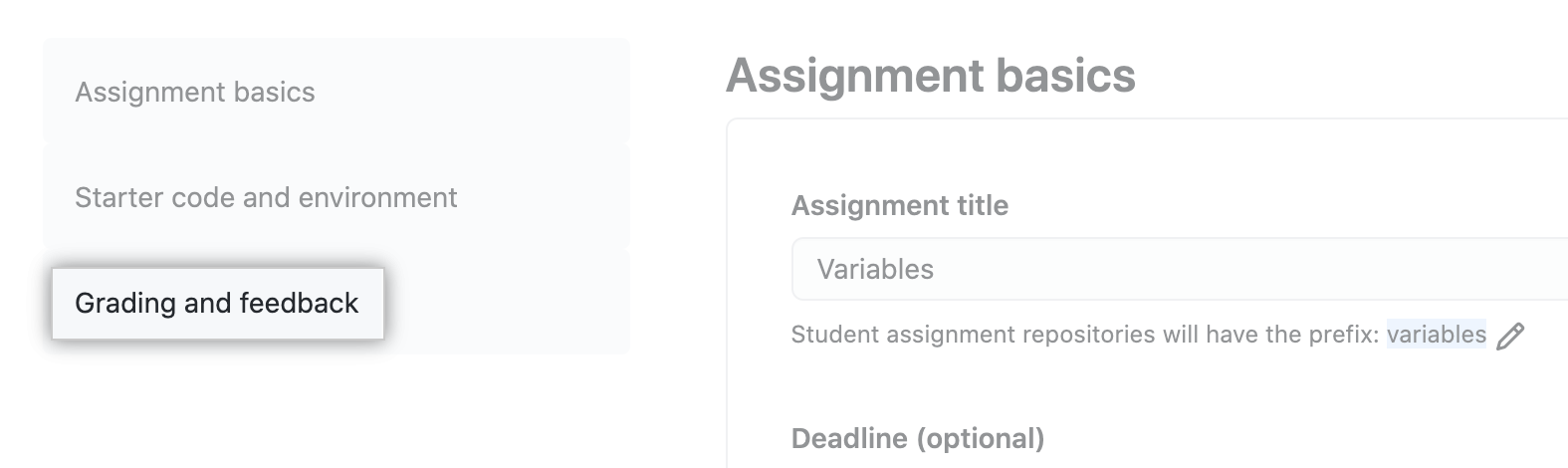
- Add, edit, or delete an autograding test.
- To add a test, under "Add autograding tests", select the Add test drop-down menu, then click the grading method you want to use.
 Configure the test, then click Save test case.

- To edit a test, to the right of the test name, click {% octicon "pencil" aria-label="The pencil icon" %}.
 Configure the test, then click Save test case.
- To delete a test, to the right of the test name, click {% octicon "trash" aria-label="The trash icon" %}.

- To add a test, under "Add autograding tests", select the Add test drop-down menu, then click the grading method you want to use.
- At the bottom of the page, click Update assignment.



Viewing logs from autograding tests
{% data reusables.classroom.sign-into-github-classroom %} {% data reusables.classroom.click-classroom-in-list %} {% data reusables.classroom.click-assignment-in-list %}
- To the right of a submission, click View test.

- Review the test output. For more information, see "Using workflow run logs."
