 3df90fc9b8
Are you looking for something? Here is all of the GitHub Docs history in one single commit. Enjoy! 🎉
6.0 KiB
title, intro, product, versions
| title | intro | product | versions | ||
|---|---|---|---|---|---|
| Using Codespaces in Visual Studio | You can develop in your codespace directly in {{ site.data.variables.product.prodname_vs }} by connecting with your account on {{ site.data.variables.product.product_name }}. | {{ site.data.reusables.gated-features.codespaces }} |
|
{% note %}
Note: {{ site.data.variables.product.prodname_codespaces }} is currently in limited public beta and subject to change. During the beta period, {{ site.data.variables.product.prodname_dotcom }} does not make any guarantees about the availability of {{ site.data.variables.product.prodname_codespaces }}. Sign up for the limited public beta. For more information about joining the beta, see "About {{ site.data.variables.product.prodname_codespaces }}."
{% endnote %}
About Codespaces in {{ site.data.variables.product.prodname_vs }}
You can create a codespace in {{ site.data.variables.product.prodname_vs }} to develop applications in a Windows environment. When you use a codespace in {{ site.data.variables.product.prodname_vs }}, you can browse source code, build solutions, and commit changes to your repository.
You must create a codespace in {{ site.data.variables.product.prodname_vs }} to use it with the application. Codespaces created outside of {{ site.data.variables.product.prodname_vs }} can not currently be used with {{ site.data.variables.product.prodname_vs }}.
Prerequisites
Before you configure a codespace in {{ site.data.variables.product.prodname_vs }}, you must download the latest version of {{ site.data.variables.product.prodname_vs }} Preview.
Enabling the connection between {{ site.data.variables.product.prodname_vs }} and {{ site.data.variables.product.prodname_github_codespaces }}
Connecting to {{ site.data.variables.product.prodname_github_codespaces }} with the {{ site.data.variables.product.prodname_vs }} Preview is not enabled by default, so you will first need to enable the Preview Features option.
- In {{ site.data.variables.product.prodname_vs }} Preview, use the Tools drop-down menu, then click Options.
- Under Environment, select Preview Features and check the Connect to {{ site.data.variables.product.prodname_github_codespaces }} preview feature.
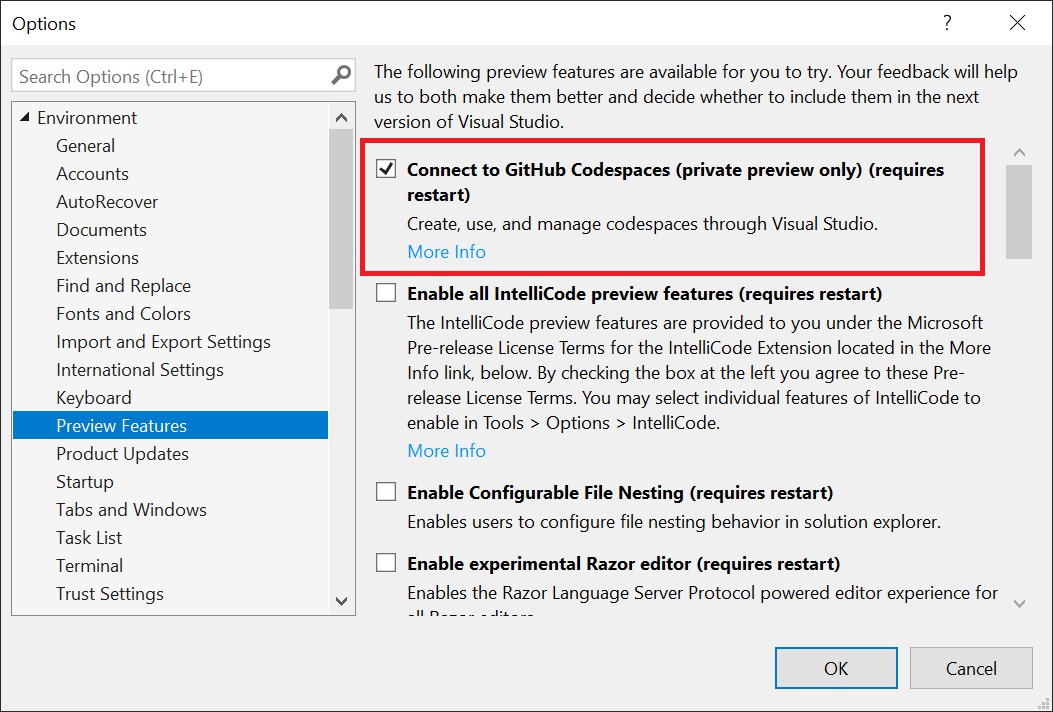
- You will need to restart {{ site.data.variables.product.prodname_vs }} for the feature to be available.

Creating a codespace in {{ site.data.variables.product.prodname_vs }}
- When you launch {{ site.data.variables.product.prodname_vs }}, the Start Window will show a Connect to a codespace button under "Get started".

- Click Connect to a codespace.
- Click Sign in to {{ site.data.variables.product.prodname_dotcom }} and follow the prompts, or click Create one! to create a new {{ site.data.variables.product.prodname_dotcom }} account and sign into the account.

- Under "Codespace details", type the repository's URL you want {{ site.data.variables.product.prodname_github_codespaces }} to clone into your codespace.
- Optionally, use the Instance type and Suspend after drop-down menus to configure more codespace details.

- Click Create and Connect. {{ site.data.variables.product.prodname_github_codespaces }} will begin preparing the codespace and open {{ site.data.variables.product.prodname_vs }} after the codespace is ready. The codespace name will appear in the remote indicator in the menu.


Opening a codespace in {{ site.data.variables.product.prodname_vs }}
- Use the File drop-down menu, and click Connect to a Codespace.

- Under "{{ site.data.variables.product.prodname_github_codespaces }}", click the codespace you want to connect to, then click Connect.


Configuring a codespace for {{ site.data.variables.product.prodname_vs }}
The default codespace environment created by {{ site.data.variables.product.prodname_vs }} includes popular frameworks and tools such as .NET Core, Microsoft SQL Server, Python, and the Windows SDK. {{ site.data.variables.product.prodname_github_codespaces }} created with {{ site.data.variables.product.prodname_vs }} can be customized through a subset of devcontainers.json properties and a new tool called devinit, included with {{ site.data.variables.product.prodname_vs }}.
devinit
The devinit command-line tool lets you install additional frameworks and tools into your Windows development codespaces, as well as run PowerShell scripts or modify environment variables. devinit supports a configuration file called devinit.json, which can be added to your project for creating customized and repeatable development environments. For more information about Windows codespace configuration and devinit, see Customize a codespace in the {{ site.data.variables.product.prodname_vs }} documentation.