
24 KiB
title, intro, shortTitle, versions, topics, redirect_from, contentType
| title | intro | shortTitle | versions | topics | redirect_from | contentType | |||||||
|---|---|---|---|---|---|---|---|---|---|---|---|---|---|
| Using the GitHub MCP Server | Learn how to use the GitHub Model Context Protocol (MCP) server to extend {% data variables.copilot.copilot_chat_short %}. | Use the GitHub MCP Server |
|
|
|
how-tos |
Note
The remote {% data variables.product.github %} MCP server is currently in {% data variables.release-phases.public_preview %} and subject to change; use of the {% data variables.product.github %} MCP server locally is generally available (GA).
While in {% data variables.release-phases.public_preview %}, access to the remote {% data variables.product.github %} MCP server through OAuth in {% data variables.product.prodname_copilot_short %} is governed by the {% data variables.product.prodname_copilot_short %} Editor preview features policy at the organization or enterprise level. PAT access to the server is managed by PAT policies.
{% vscode %}
{% data reusables.copilot.mcp.about-github-mcp-server %}
Prerequisites
- A {% data variables.product.github %} account.
- {% data variables.product.prodname_vscode %}, or another MCP-compatible editor.
Setting up the {% data variables.product.github %} MCP server in {% data variables.product.prodname_vscode %}
The instructions below guide you through setting up the {% data variables.product.github %} MCP server in {% data variables.product.prodname_vscode %}. Other MCP-compatible editors may have similar steps, but the exact process may vary.
You can choose to set up the {% data variables.product.github %} MCP server either remotely or locally, depending on your needs and preferences. You can also configure your {% data variables.product.github %} MCP server for either:
{% data reusables.copilot.mcp.mcp-configuration-location %}
The remote {% data variables.product.github %} MCP server uses one-click OAuth authentication by default, but you can also manually configure it to use a {% data variables.product.pat_generic %} (PAT) for authentication. If you use OAuth, the MCP server will have the same access as your personal account. If you use a PAT, the MCP server will have access to the scopes granted by the PAT.
Note
If you are an {% data variables.product.prodname_emu %} with PAT restrictions, you won't be able to use PAT authentication. If you have OAuth access policy restrictions, you will need the OAuth apps for each client to be enabled (except {% data variables.product.prodname_vscode %} and {% data variables.product.prodname_vs %}).
- Remote MCP server configuration with OAuth
- Remote MCP server configuration with PAT
- Local MCP server setup
Remote MCP server configuration with OAuth
Note
The remote {% data variables.product.github %} MCP server is not available to {% data variables.product.prodname_ghe_server %} users. If you are using {% data variables.product.prodname_ghe_server %}, you can install the {% data variables.product.github %} MCP server locally. See Local MCP server setup.
You do not need to create a PAT or install any additional software to use the remote {% data variables.product.github %} MCP server with OAuth. You can set it up directly in {% data variables.product.prodname_vscode %}. You can also install individual toolsets, either in read-only mode or with full read/write access, allowing you to tailor the server's capabilities to your specific needs. For more information, see Tool configuration.
-
In {% data variables.product.prodname_vscode %}, open the command palette by pressing Ctrl+Shift+P (Windows/Linux) / Command+Shift+P (Mac).
-
Type:
mcp: add serverand then press Enter. -
From the list, select HTTP (HTTP or Server-Sent Events).
-
In the Server URL field, enter
https://api.githubcopilot.com/mcp/, and press Enter. -
Under Enter Server ID, press Enter to use the default server ID, or enter a custom server ID.
-
Under Choose where to save the configuration, select where you want to save the MCP server configuration.
- {% data variables.product.prodname_vscode %} will open and add the configuration to the selected file in the editor, or create a new file if it doesn't exist.
-
In the {% data variables.product.prodname_vscode %} popup, to authorize the MCP server with OAuth, click Allow and select your personal account from the list.
Remote MCP server configuration with PAT
To configure the remote {% data variables.product.github %} MCP server with a PAT, ensure you have created a PAT with the necessary scopes for the access you want to grant to the MCP server. For more information, see AUTOTITLE.
You will need to manually configure the MCP server in {% data variables.product.prodname_vscode %} to use the PAT for authorization.
-
In {% data variables.product.prodname_vscode %}, open the command palette by pressing Ctrl+Shift+P (Windows/Linux) / Command+Shift+P (Mac).
-
Type:
mcp: add serverand then press Enter. -
From the list, select HTTP (HTTP or Server-Sent Events).
-
In the Server URL field, enter
https://api.githubcopilot.com/mcp/, and press Enter. -
Under Enter Server ID, press Enter to use the default server ID, or enter a custom server ID.
-
Under Choose where to save the configuration, select where you want to save the MCP server configuration.
- {% data variables.product.prodname_vscode %} will open and add the configuration to the selected file in the editor, or create a new file if it doesn't exist.
-
In the {% data variables.product.prodname_vscode %} popup, to decline OAuth authorization, click Cancel.
-
You will need to manually edit the configuration file to use a PAT. In the configuration file, at the end of the
urlline, add the following:, "headers": { "Authorization": "Bearer ${input:github_token}" } }, }, "inputs": [ { "id": "github_token", "type": "promptString", "description": "{% data variables.product.github %} {% data variables.product.pat_generic_title_case %}", "password": true } ] } -
A "Restart" button will appear in the file. Click "Restart" to restart the MCP server with the new configuration.

-
In the command palette, you will see a prompt to enter your GitHub token. Enter the PAT you created earlier, and press Enter.
- The MCP server will now be configured to use the PAT for authorization.

Local MCP server setup
Note
If you are a {% data variables.product.prodname_ghe_server %} user, and your enterprise has PAT restrictions enabled, you can only use API endpoints for scopes that are allowed by your enterprise's PAT policy. If all API endpoints are restricted, you will not be able to use the MCP server. If you are unsure about your enterprise's PAT policy, contact your enterprise administrator for more information.
Using the {% data variables.product.github %} MCP server locally requires you to have Docker installed and running on your machine. Additionally, you can only authenticate with a PAT, as OAuth is not supported for local MCP servers.
-
Ensure you have Docker installed and running on your machine. See Docker installation instructions.
-
Create a PAT with (at least) the
read:packagesandreposcopes. For more information, see AUTOTITLE. -
Decide whether you want to configure the MCP server for a specific repository or for your personal instance of {% data variables.product.prodname_vscode %}.
- If you are using a specific repository, open the
.vscode/mcp.jsonfile in {% data variables.product.prodname_vscode %}, and add the following configuration:
{ "inputs": [ { "type": "promptString", "id": "github_token", "description": "{% data variables.product.github %} {% data variables.product.pat_generic_title_case %}", "password": true } ], "servers": { "github": { "command": "docker", "args": [ "run", "-i", "--rm", "-e", "GITHUB_PERSONAL_ACCESS_TOKEN", "ghcr.io/github/github-mcp-server" ], "env": { "GITHUB_PERSONAL_ACCESS_TOKEN": "${input:github_token}" } } } }- If you are using your personal instance of {% data variables.product.prodname_vscode %}, open your
settings.jsonfile in {% data variables.product.prodname_vscode %}:- Press Ctrl+Shift+P (Windows/Linux) or Cmd+Shift+P (macOS).
- Type Preferences: Open Settings (JSON) and select it.
- Add the following configuration:
{ "mcp": { "inputs": [ { "type": "promptString", "id": "github_token", "description": "{% data variables.product.github %} {% data variables.product.pat_generic_title_case %}", "password": true } ], "servers": { "github": { "command": "docker", "args": [ "run", "-i", "--rm", "-e", "GITHUB_PERSONAL_ACCESS_TOKEN", "ghcr.io/github/github-mcp-server" ], "env": { "GITHUB_PERSONAL_ACCESS_TOKEN": "${input:github_token}" } } } } } - If you are using a specific repository, open the
-
Save the file.
-
In the command palette, you will see a prompt to enter your {% data variables.product.github %} token. Enter the PAT you created earlier, and press Enter.
- The MCP server will now be configured to run locally with the PAT for authorization.
Tool configuration
The {% data variables.product.github %} MCP server supports installing individual toolsets, either in read-only mode or with full read/write access, allowing you to tailor the server's capabilities to your specific needs. For one-click installation options of each toolset, see the GitHub MCP server repository.
Using the {% data variables.product.github %} MCP server in {% data variables.product.prodname_vscode %}
The {% data variables.product.github %} MCP server enables you to perform a wide range of actions on {% data variables.product.github %}, via {% data variables.copilot.copilot_chat_short %} in {% data variables.product.prodname_vscode %}.
{% data reusables.copilot.open-chat-vs-code %} {% data reusables.copilot.select-agent %}
- To see the available actions, in the {% data variables.copilot.copilot_chat_short %} box, click the Select tools icon.
- In the Tools dropdown, under MCP Server: {% data variables.product.github %}, you will see a list of available actions.
- In the {% data variables.copilot.copilot_chat_short %} box, type a command or question related to the action you want to perform, and press Enter.
- For example, you can ask the {% data variables.product.github %} MCP server to create a new issue, list pull requests, or retrieve repository information.
- The {% data variables.product.github %} MCP server will process your request and provide a response in the chat interface.
- In the {% data variables.copilot.copilot_chat_short %} box, you may be asked to give additional permissions or provide more information to complete the action.
- Follow the prompts to complete the action.
{% endvscode %}
{% jetbrains %}
{% data reusables.copilot.mcp.about-github-mcp-server %}
Prerequisites
-
Access to {% data variables.product.prodname_copilot_short %}. {% data reusables.copilot.subscription-prerequisite %}
-
A compatible JetBrains IDE. {% data variables.product.prodname_copilot %} is compatible with the following IDEs:
{% data reusables.copilot.jetbrains-compatible-ides %} {% data reusables.copilot.jetbrains-plugin-prerequisites %}
Setting up the {% data variables.product.github %} MCP server in JetBrains IDEs
The instructions below guide you through setting up the {% data variables.product.github %} MCP server in JetBrains IDEs. Other MCP-compatible editors may have similar steps, but the exact process may vary.
We recommend setting up the {% data variables.product.github %} MCP server remotely. JetBrains IDEs only support using a {% data variables.product.pat_generic %} (PAT) for authentication with the {% data variables.product.github %} MCP server.
Note
If you are an {% data variables.product.prodname_emu %} with PAT restrictions, you won't be able to use PAT authentication.
For information on setting up the {% data variables.product.github %} MCP server locally, see the GitHub MCP server repository.
Remote MCP server configuration with PAT
To configure the remote {% data variables.product.github %} MCP server with a PAT, ensure you have created a PAT with the necessary scopes for the access you want to grant to the MCP server. For more information, see AUTOTITLE.
- In the lower right corner, click {% octicon "copilot" aria-hidden="true" aria-label="copilot" %}.
- From the menu, select "Edit settings".
- Under the MCP section, click "Edit in
mcp.json". - Add the following configuration, replacing
YOUR_GITHUB_PATwith the PAT you created:
  {
    "servers": {
        "github": {
            "url": "https://api.githubcopilot.com/mcp/",
            "requestInit": {
                "headers": {
                    "Authorization": "Bearer YOUR_GITHUB_PAT"
                }
            }
        }
    }
  }
Using the {% data variables.product.github %} MCP server in JetBrains IDEs
The {% data variables.product.github %} MCP server enables you to perform a wide range of actions on {% data variables.product.github %}, via {% data variables.copilot.copilot_chat_short %} in JetBrains IDEs.
-
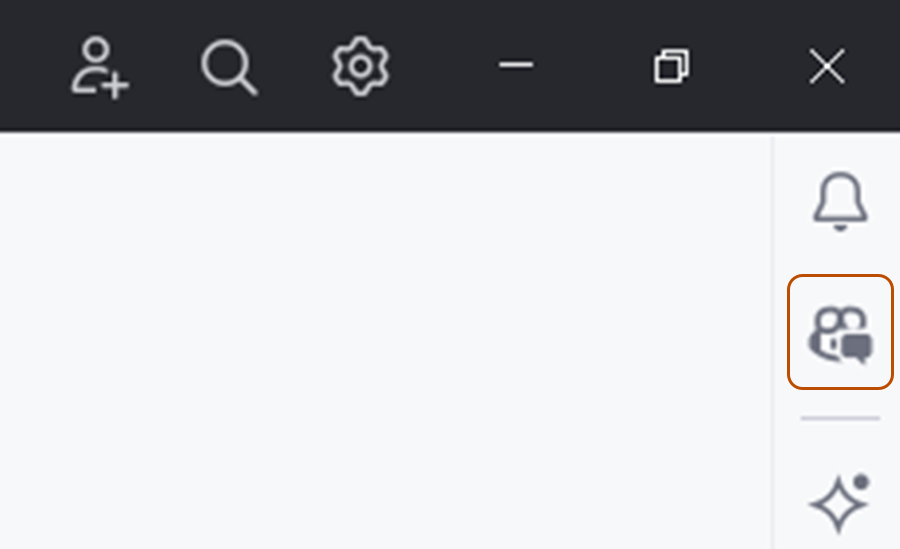
Open the {% data variables.copilot.copilot_chat_short %} window by clicking the {% data variables.copilot.copilot_chat %} icon at the right side of the JetBrains IDE window.
-
At the top of the chat panel, click the Agent tab.
-
To see the available actions, in the {% data variables.copilot.copilot_chat_short %} box, click the tools icon.
- Under MCP Server: {% data variables.product.github %}, you will see a list of available actions.
-
In the {% data variables.copilot.copilot_chat_short %} box, type a command or question related to the action you want to perform, and press Enter.
- For example, you can ask the {% data variables.product.github %} MCP server to create a new issue, list pull requests, or retrieve repository information.
-
The {% data variables.product.github %} MCP server will process your request and provide a response in the chat interface.
- In the {% data variables.copilot.copilot_chat_short %} box, you may be asked to give additional permissions or provide more information to complete the action.
-
Follow the prompts to complete the action.

{% endjetbrains %}
{% xcode %}
{% data reusables.copilot.mcp.about-github-mcp-server %}
Prerequisites
- Access to {% data variables.product.prodname_copilot_short %}. {% data reusables.copilot.subscription-prerequisite %}
- {% data variables.product.prodname_copilot %} for Xcode extension. See AUTOTITLE.
Setting up the {% data variables.product.github %} MCP server in Xcode
The instructions below guide you through setting up the {% data variables.product.github %} MCP server in Xcode. Other MCP-compatible editors may have similar steps, but the exact process may vary.
We recommend setting up the {% data variables.product.github %} MCP server remotely. Xcode only supports using a {% data variables.product.pat_generic %} (PAT) for authentication with the {% data variables.product.github %} MCP server.
Note
If you are an {% data variables.product.prodname_emu %} with PAT restrictions, you won't be able to use PAT authentication.
For information on setting up the {% data variables.product.github %} MCP server locally, see the GitHub MCP server repository.
Remote MCP server configuration with PAT
To configure the remote {% data variables.product.github %} MCP server with a PAT, ensure you have created a PAT with the necessary scopes for the access you want to grant to the MCP server. For more information, see AUTOTITLE.
- Open the {% data variables.product.prodname_copilot %} for Xcode extension.
- In agent mode, click the tools icon.
- Select "Edit config".
- Add the following configuration, replacing
YOUR_GITHUB_PATwith the PAT you created:
  {
    "servers": {
        "github": {
            "url": "https://api.githubcopilot.com/mcp/",
            "requestInit": {
                "headers": {
                    "Authorization": "Bearer YOUR_GITHUB_PAT"
                }
            }
        }
    }
  }
Using the {% data variables.product.github %} MCP server in Xcode
The {% data variables.product.github %} MCP server enables you to perform a wide range of actions on {% data variables.product.github %}, via {% data variables.copilot.copilot_chat_short %} in Xcode.
- To open the chat view, click Editor in the menu bar, then click {% octicon "copilot" aria-hidden="true" aria-label="copilot" %} {% data variables.product.prodname_copilot_short %} then Open Chat. {% data variables.copilot.copilot_chat_short %} opens in a new window.
- At the bottom of the chat panel, select Agent.
- To see the available actions, in the {% data variables.copilot.copilot_chat_short %} box, click the tools icon.
- Under MCP Server: {% data variables.product.github %}, you will see a list of available actions.
- In the {% data variables.copilot.copilot_chat_short %} box, type a command or question related to the action you want to perform, and press Enter.
- For example, you can ask the {% data variables.product.github %} MCP server to create a new issue, list pull requests, or retrieve repository information.
- The {% data variables.product.github %} MCP server will process your request and provide a response in the chat interface.
- In the {% data variables.copilot.copilot_chat_short %} box, you may be asked to give additional permissions or provide more information to complete the action.
- Follow the prompts to complete the action.
{% endxcode %}
{% eclipse %}
{% data reusables.copilot.mcp.about-github-mcp-server %}
Prerequisites
{% data reusables.copilot.eclipse-prerequisites %}
- Latest version of the {% data variables.product.prodname_copilot %} extension. Download this from the Eclipse Marketplace. For more information, see AUTOTITLE.
- Sign in to {% data variables.product.company_short %} from Eclipse.
Setting up the {% data variables.product.github %} MCP server in Eclipse
The instructions below guide you through setting up the {% data variables.product.github %} MCP server in Eclipse. Other MCP-compatible editors may have similar steps, but the exact process may vary.
We recommend setting up the {% data variables.product.github %} MCP server remotely. Eclipse only supports using a {% data variables.product.pat_generic %} (PAT) for authentication with the {% data variables.product.github %} MCP server.
Note
If you are an {% data variables.product.prodname_emu %} with PAT restrictions, you won't be able to use PAT authentication.
For information on setting up the {% data variables.product.github %} MCP server locally, see the GitHub MCP server repository.
Remote MCP server configuration with PAT
To configure the remote {% data variables.product.github %} MCP server with a PAT, ensure you have created a PAT with the necessary scopes for the access you want to grant to the MCP server. For more information, see AUTOTITLE.
- To open the {% data variables.copilot.copilot_chat_short %} panel, click the {% data variables.product.prodname_copilot_short %} icon ({% octicon "copilot" aria-hidden="true" aria-label="copilot" %}) in the status bar at the bottom of Eclipse.
- From the menu, select "Edit preferences".
- In the left pane, expand {% data variables.product.prodname_copilot %} and click MCP.
- Add the following configuration, replacing
YOUR_GITHUB_PATwith the PAT you created:
  {
    "servers": {
        "github": {
            "url": "https://api.githubcopilot.com/mcp/",
            "requestInit": {
                "headers": {
                    "Authorization": "Bearer YOUR_GITHUB_PAT"
                }
            }
        }
    }
  }
Using the {% data variables.product.github %} MCP server in Eclipse
The {% data variables.product.github %} MCP server enables you to perform a wide range of actions on {% data variables.product.github %}, via {% data variables.copilot.copilot_chat_short %} in Eclipse.
- To open the {% data variables.copilot.copilot_chat_short %} panel, click the {% data variables.product.prodname_copilot_short %} icon ({% octicon "copilot" aria-hidden="true" aria-label="copilot" %}) in the status bar at the bottom of Eclipse, then click Open Chat.
- At the bottom of the chat panel, select Agent from the mode dropdown.
- To see the available actions, in the {% data variables.copilot.copilot_chat_short %} box, click the tools icon.
- Under
github, you will see a list of available actions.
- Under
- In the {% data variables.copilot.copilot_chat_short %} box, type a command or question related to the action you want to perform, and press Enter.
- For example, you can ask the {% data variables.product.github %} MCP server to create a new issue, list pull requests, or retrieve repository information.
- The {% data variables.product.github %} MCP server will process your request and provide a response in the chat interface.
- In the {% data variables.copilot.copilot_chat_short %} box, you may be asked to give additional permissions or provide more information to complete the action.
- Follow the prompts to complete the action.
{% endeclipse %}
{% data reusables.copilot.mcp.troubleshooting-mcp-server %}